Scanning
Turn the paper on your desk into a document you can send.
Place the page flat against a contrasting background, capture all four corners, correct the perspective and check the smallest text before exporting. Enhancement can improve visibility, but cannot restore text hidden by glare or missing from the photo.
Put the answer to work
Check the tool’s supported inputs and limits before uploading. Account and plan requirements may apply. See plans.
Adjust the corners or take another photo?
Adjust corners when the whole document is readable but tilted. Recapture when glare, blur or a clipped edge has removed information; changing the crop cannot recover it.
How WorkSpotHQ helps
WorkSpot Scan
In WorkSpot Scan, add the document, then choose Clean and straighten. For a photo with incorrect edges, use Adjust the four corners myself. In Review your scan, compare Original and Processed before choosing Download JPG or Download PDF.
Image to PDF
Use Image to PDF to prepare a PDF copy of your photographs. Check orientation and order, then open the exported PDF. Keep the original images separately if they may be needed as evidence.
Your next steps
- Use even light and a contrasting, uncluttered surface.
- Keep the camera as parallel to the page as possible and include all corners.
- Review detected edges and adjust the crop when necessary.
- Compare the processed copy with the original and download the format you need.
What this looks like in practice
A white receipt on a white table may blend into its background. Moving it onto a plain darker surface can help more than repeatedly processing the same photograph.
Illustrative guidance, not a measured accuracy result or a guarantee for every document.
Actual scanner results—not retouched illustrations
These four synthetic inputs were processed locally by WorkSpotHQ’s scanner service using automatic corner detection, without manual correction. Both files are available so you can inspect the result yourself.
These are controlled demonstrations, not photographs from customers or an independent accuracy benchmark. They do not measure OCR, receipt extraction, handwriting or production upload performance.
Dark desk, tilted page
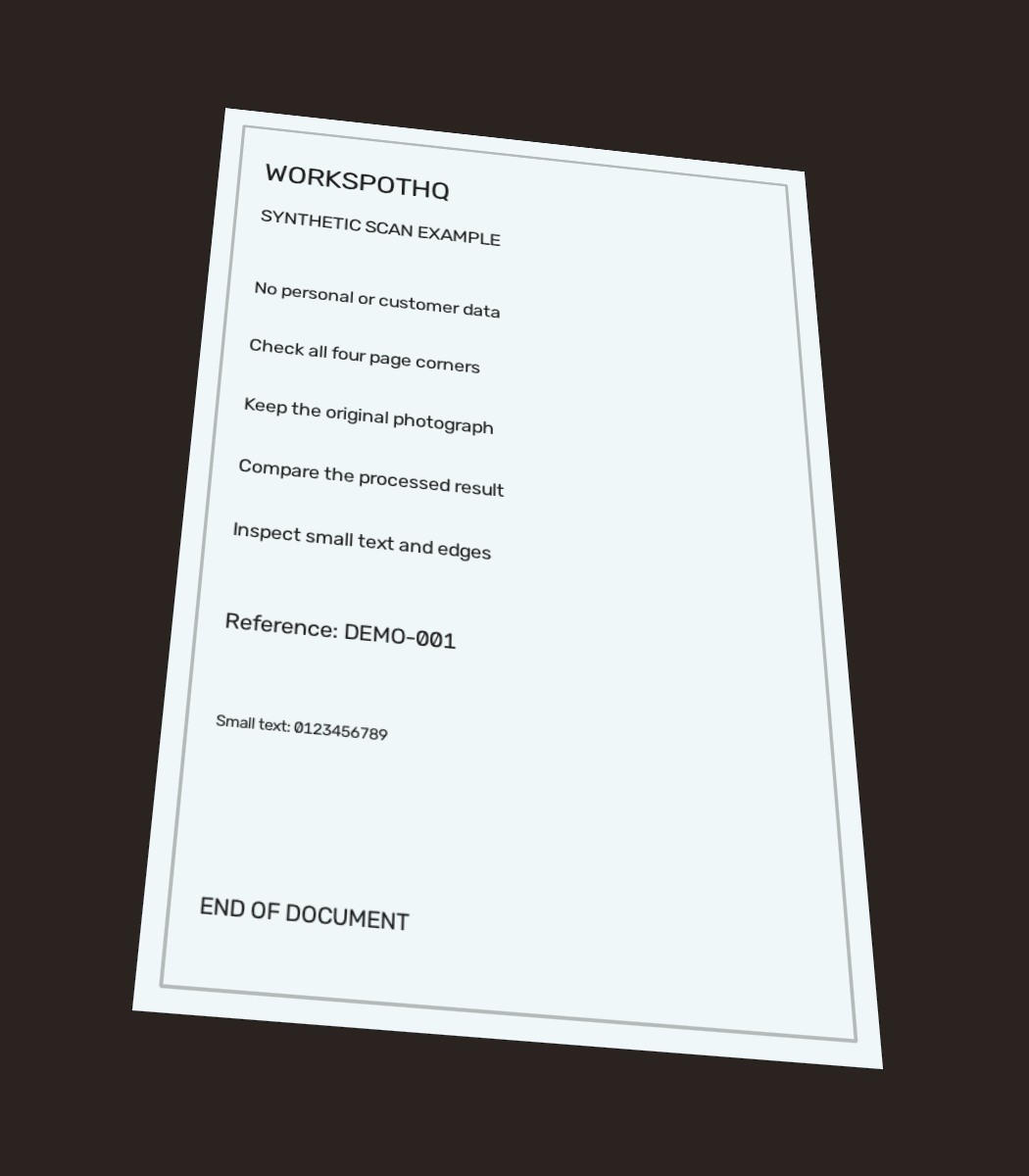
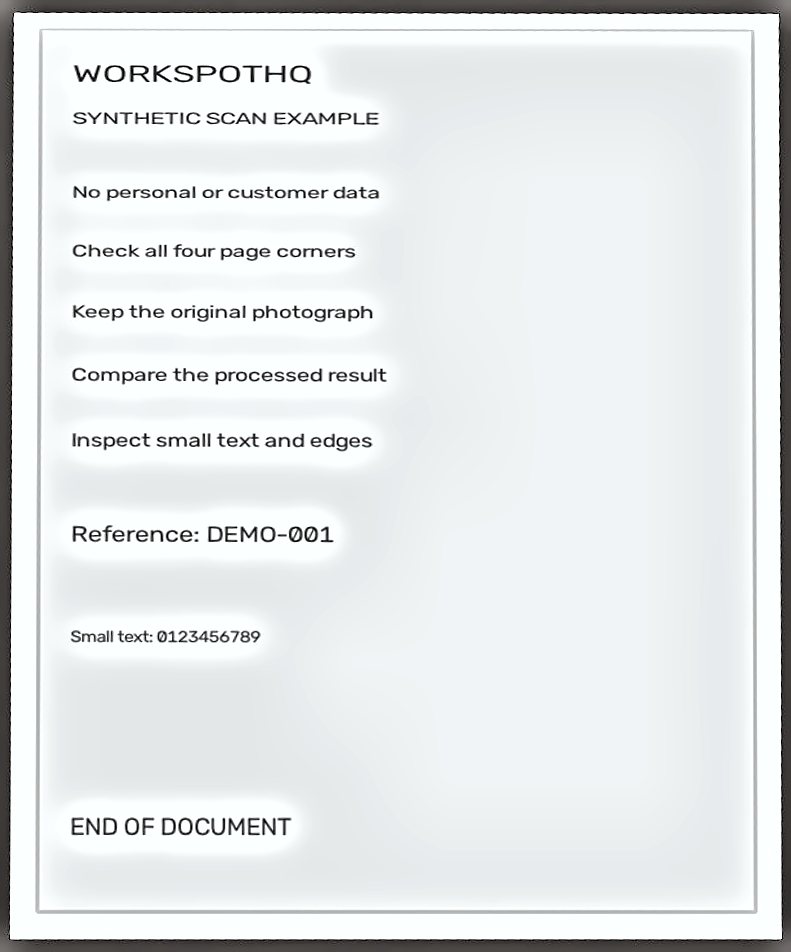
The page is straightened and all test lines remain visible. Enhancement leaves noticeable light halos around text and a narrow dark outer edge.
Source: 71,197 bytes · Result: 58,197 bytes. File-size reduction in these examples is not a guarantee for other documents.
Light desk, tilted page
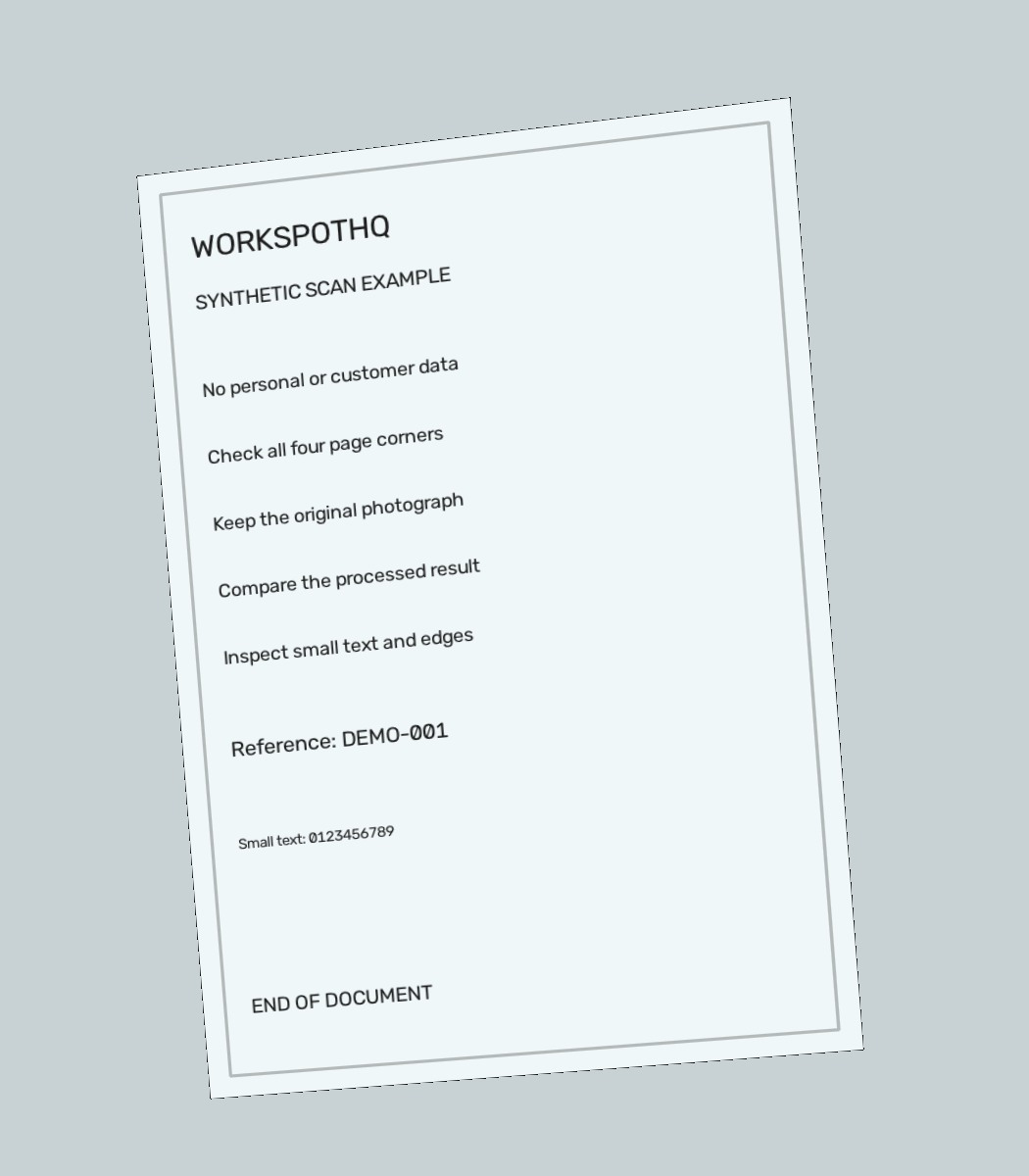
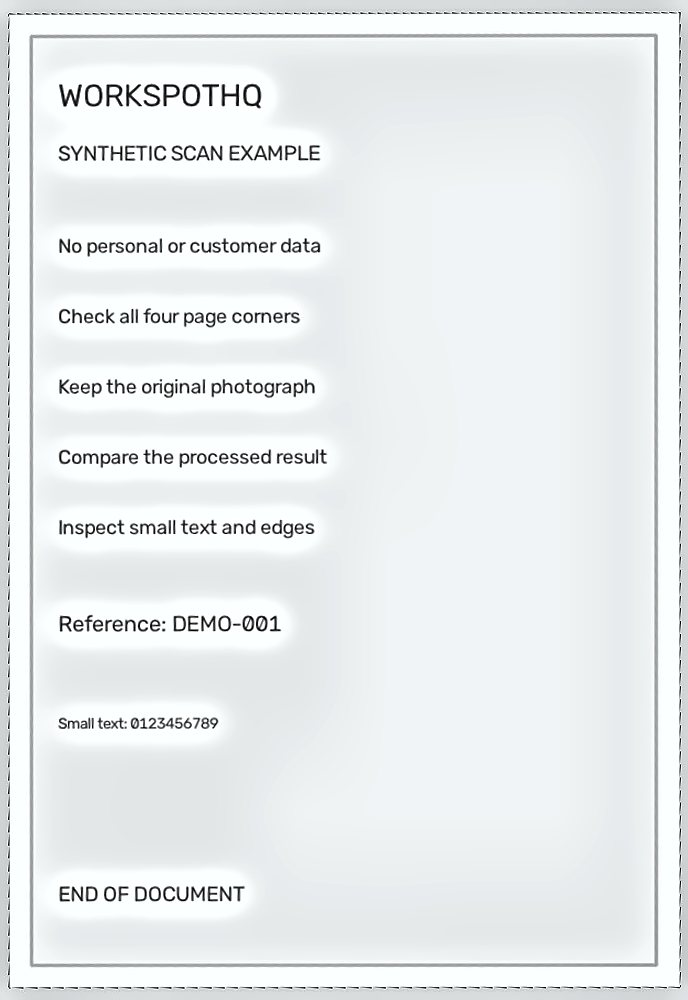
The page is straightened and the bottom label remains visible. Some background and edge artifacts remain; this is not a perfectly clean border.
Source: 73,929 bytes · Result: 60,414 bytes. File-size reduction in these examples is not a guarantee for other documents.
Dark desk with simulated shadow
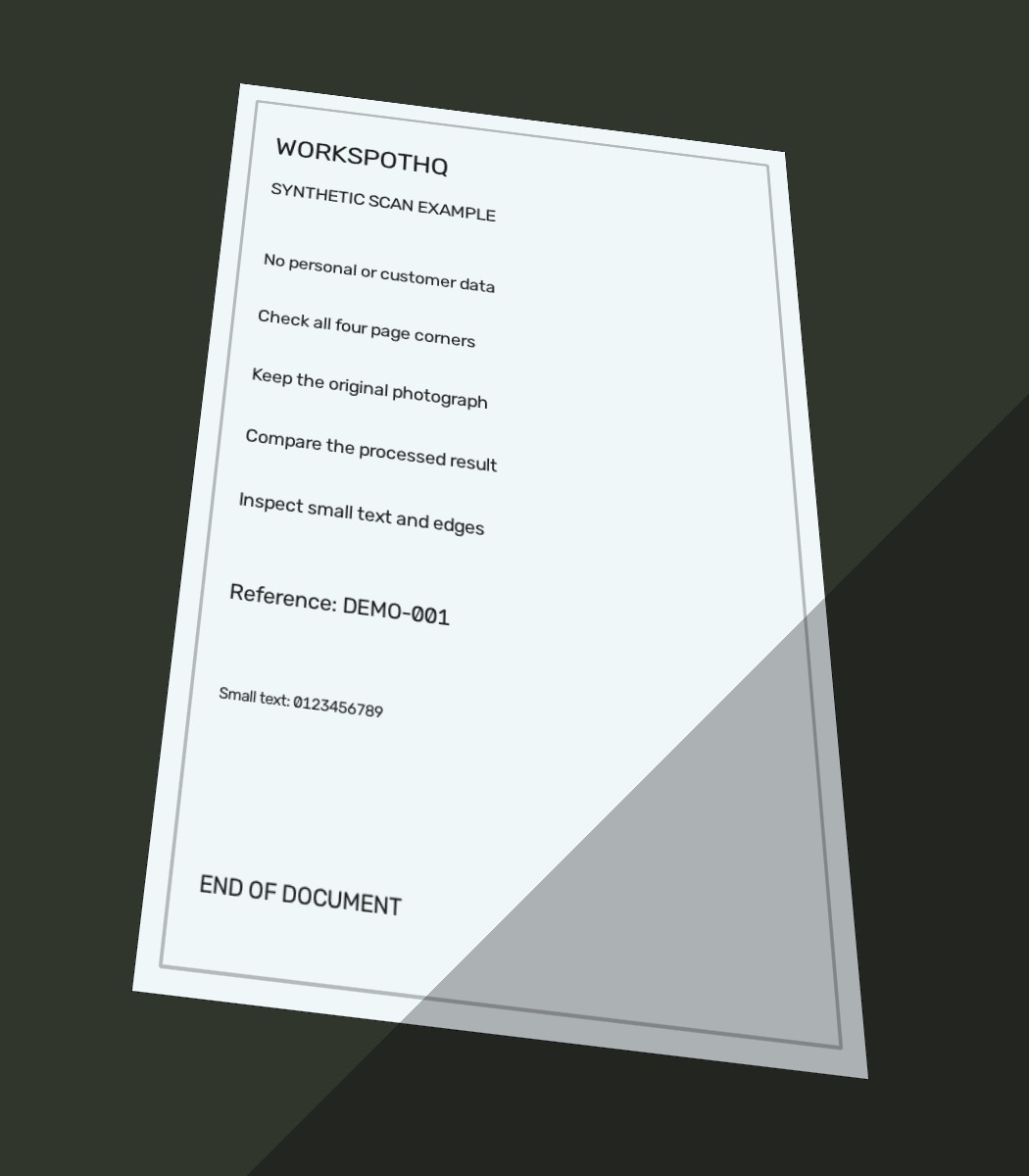
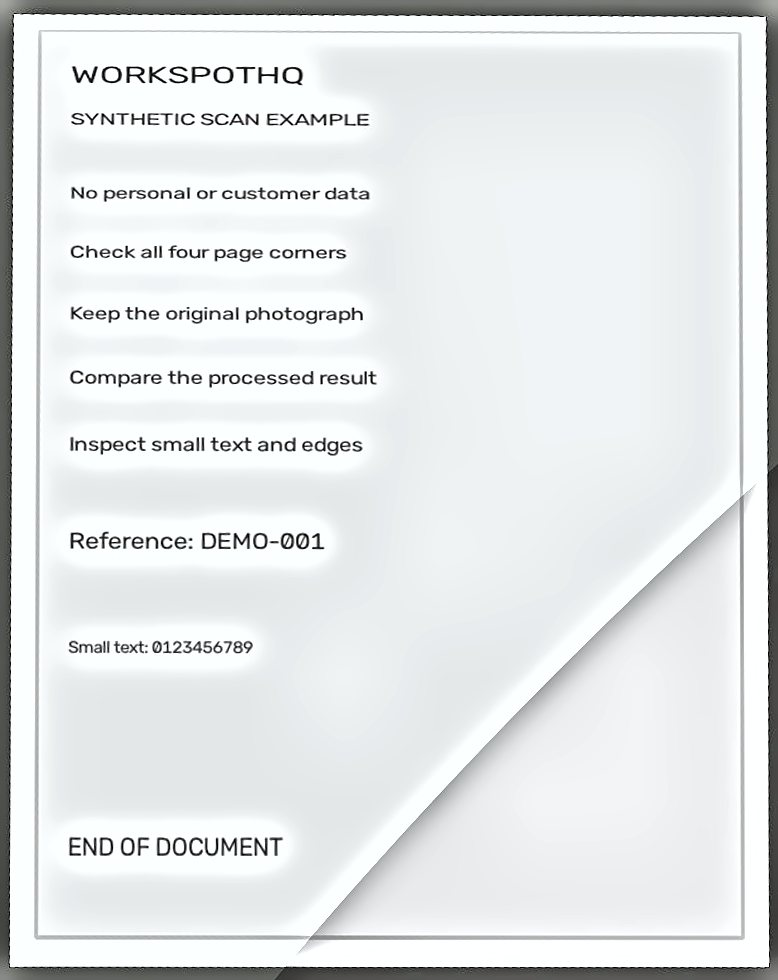
Perspective is corrected, but the diagonal shadow boundary remains strongly visible. Recapturing under even light is preferable for a polished result.
Source: 74,320 bytes · Result: 64,356 bytes. File-size reduction in these examples is not a guarantee for other documents.
Pale page on a pale background
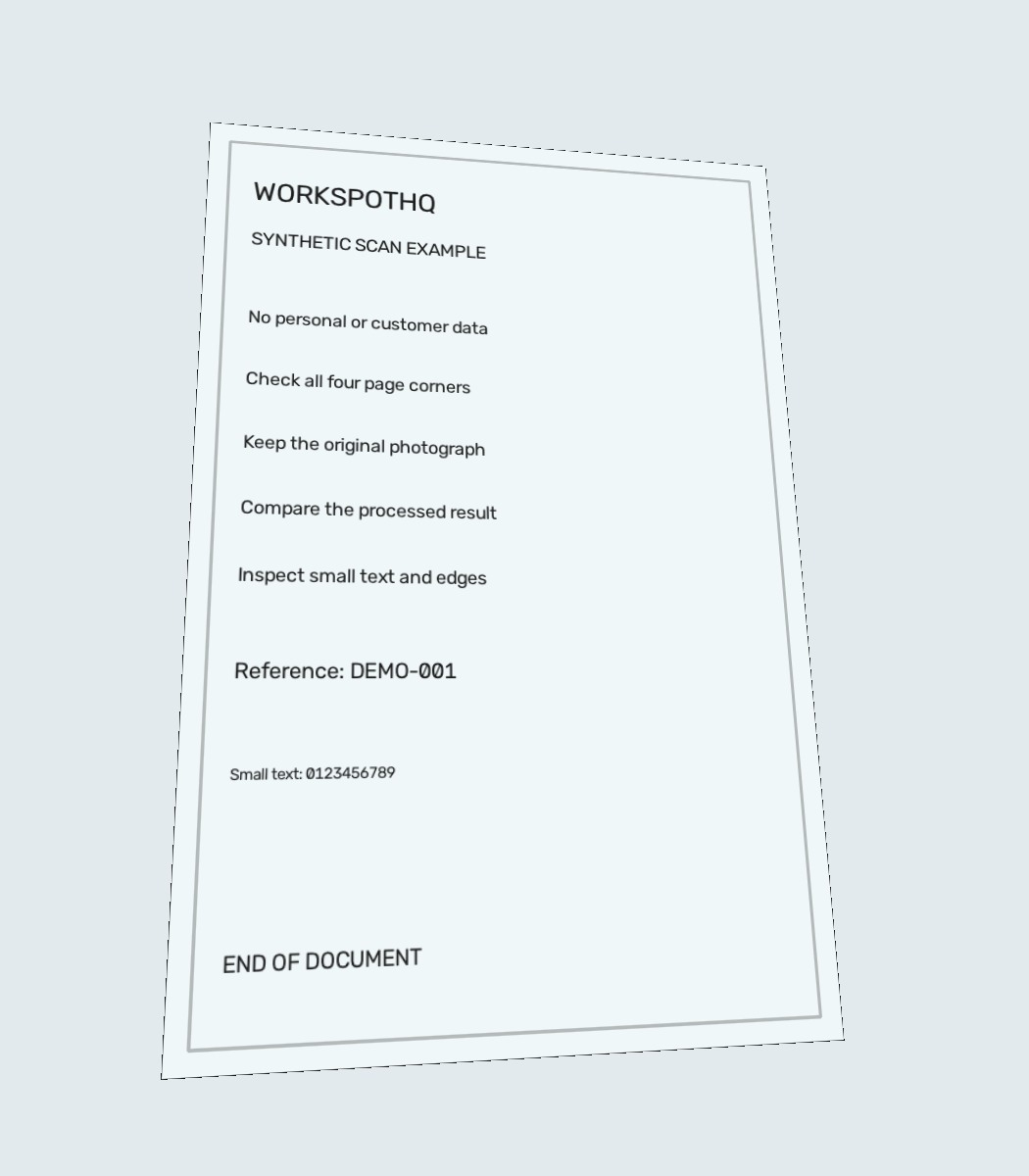
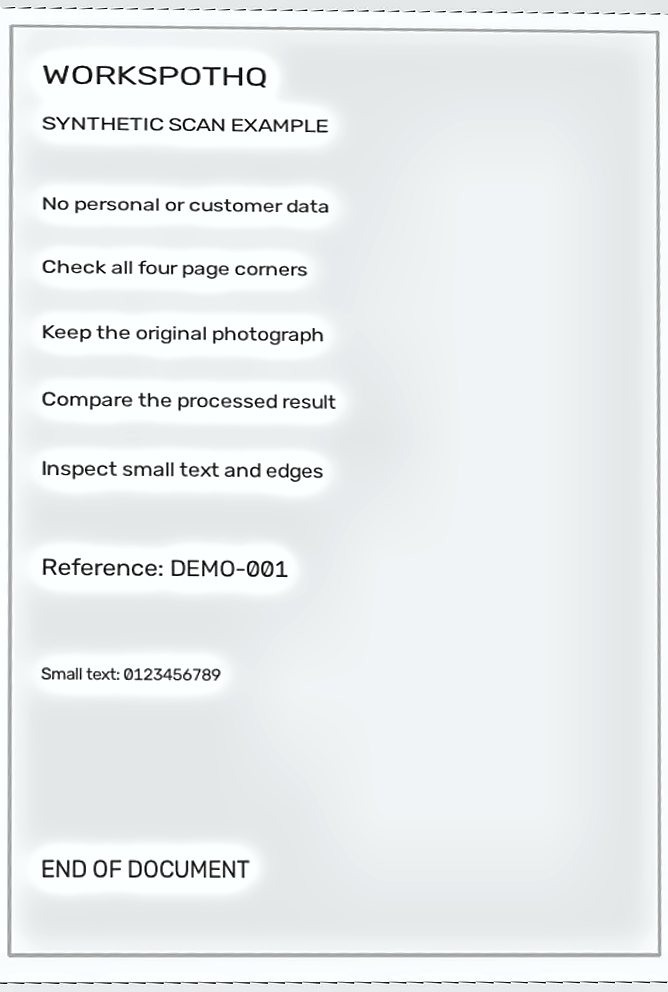
The main text remains visible, but the crop is tighter and some outer page margin is lost. Review and adjust the corners when margin content matters.
Source: 70,301 bytes · Result: 51,427 bytes. File-size reduction in these examples is not a guarantee for other documents.
Method and limitations
The source is a digitally generated page projected onto four controlled backgrounds. A Python script runs the existing scan_document service directly and retains all four results. This isolates image processing; it does not test the camera, upload flow or server capacity.
Corner-distance checks passed the script’s tolerance in all four cases, but that does not establish visual perfection. The shadow seam, enhancement halos and imperfect margins remain visible above. Check the image, not just the metric.
Read the measurements and file hashes (JSON)Before you call it done
Keep the original if it contains important evidence. Do not crop away totals, signatures or identifiers simply to make the page look tidy.