Images
Your website image should arrive before your visitor gives up.
Resize the image to an appropriate display resolution, then compress and compare the exported result. Avoid serving an unnecessarily large original where a smaller image would look the same at the actual display size.
Put the answer to work
Check the tool’s supported inputs and limits before uploading. Account and plan requirements may apply. See plans.
Resize or compress first?
Start with suitable dimensions, then compress a copy. Reducing unnecessary pixels can save size without repeatedly recompressing an oversized original.
How WorkSpotHQ helps
Resize Image
Use Resize Image to set the intended dimensions while preserving proportions. Inspect the exported image at its actual destination size, not only enlarged in the preview.
Compress Image
Use Compress Image on a copy after resizing. Compare text, gradients and edges in the exported version. Stop reducing quality when the visible cost outweighs the file-size saving.
Image Format Converter
Use Image Format Converter to create the actual required format rather than renaming an extension. Check transparency and the background in the exported file.
Your next steps
- Determine the intended display dimensions.
- Resize a copy while preserving its aspect ratio.
- Compress and inspect text, edges and gradients.
- Test the exported file in the real page layout.
What this looks like in practice
A small product thumbnail rarely needs the full camera-resolution photograph. A detailed zoom view may need a separate higher-resolution version.
A fictional website hero image
| Item | Value or document | What to check |
|---|---|---|
| Source | 4,000 × 3,000 pixels | Keep an untouched copy. |
| Requested slot | 1,200 × 900 pixels | The same 4:3 ratio allows proportional resizing without cropping. |
| Resized dimensions | 1,080,000 pixels instead of 12,000,000 | Fewer pixels do not imply a specific file-size saving. |
| Compressed copy | Compare at its intended display size | Inspect lettering, fine edges and gradients before accepting it. |
Resize first, then compare compression choices. A smaller download is useful only if the product remains clear. Check the actual site on a high-density screen too; the required source dimensions depend on how the image is displayed.
Download this fictional example (.txt)Illustrative guidance, not a measured accuracy result or a guarantee for every document.
Fewer pixels can still mean a larger file
This fictional graphic was processed through the actual local image resize and JPEG export functions. The output keeps the 4:3 proportions, but its JPEG is larger than the source PNG. Flat graphics can compress efficiently as PNG; changing dimensions and format together does not guarantee fewer bytes.
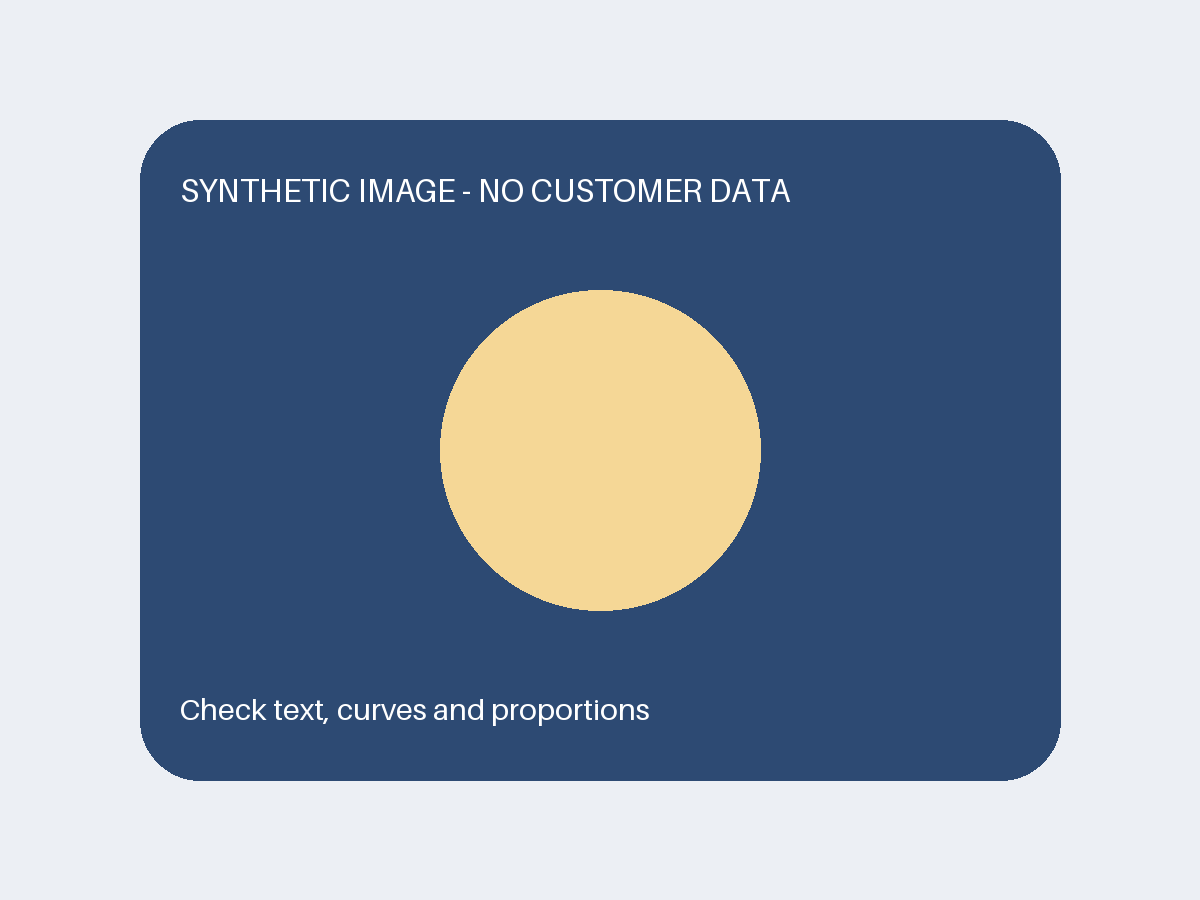
Download source PNG
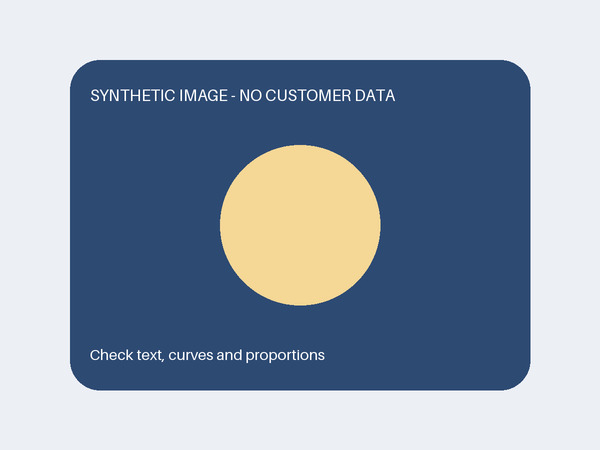
Download actual output JPG
What to do: inspect the destination-size image, compare actual bytes, and retain a suitable format for the content. This single synthetic case is not a quality or speed benchmark for photographs.
Download method and file checksums (.json)Before you call it done
Compression trades quality for size; do not promise lossless results. Test responsive display and accessibility text separately in your website.